Step by step.
- 1
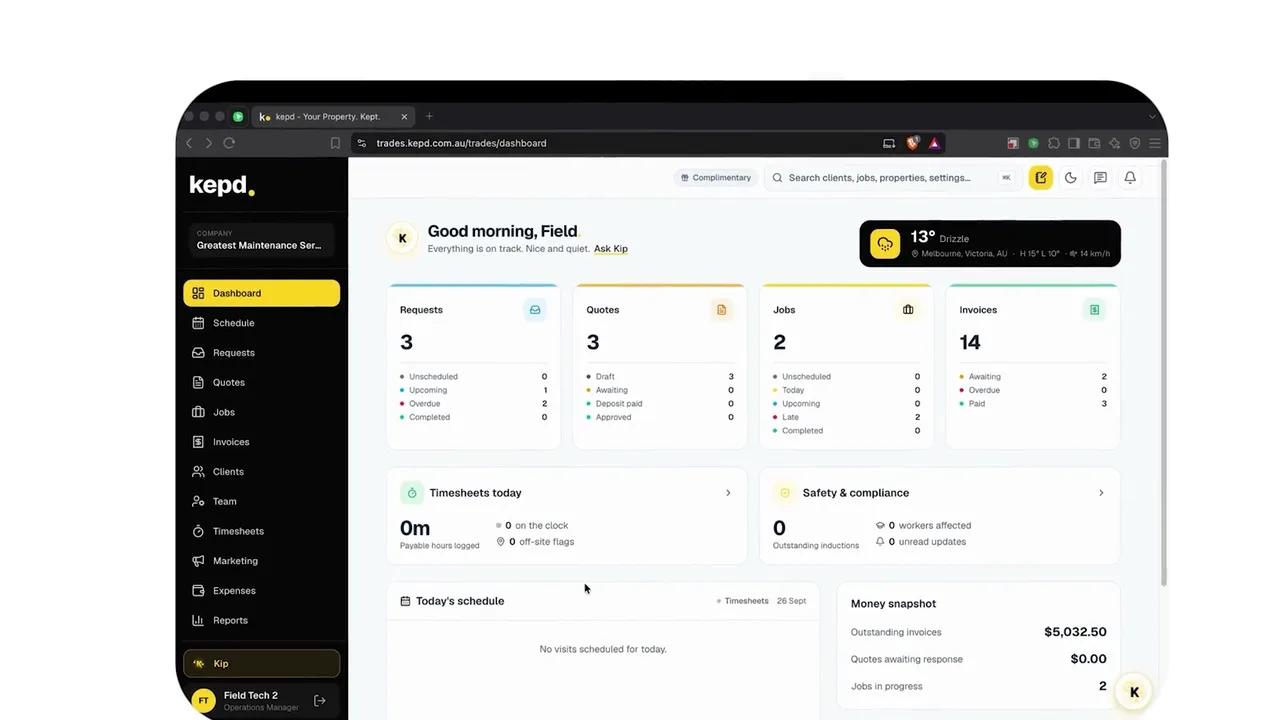
Start typing the address.
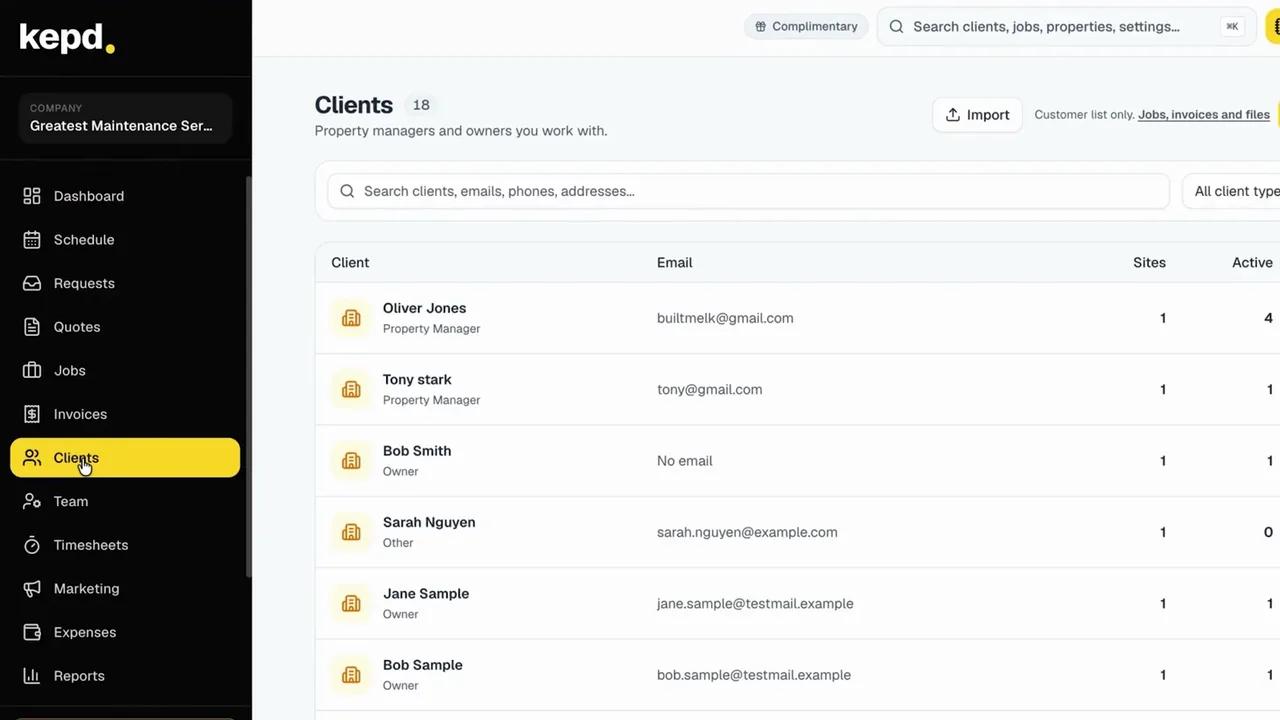
On a client's Properties tab, in New client, or in a case's Site panel, type the address. If it comes up, pick it: the pin lands on it and the map shows where.
- 2
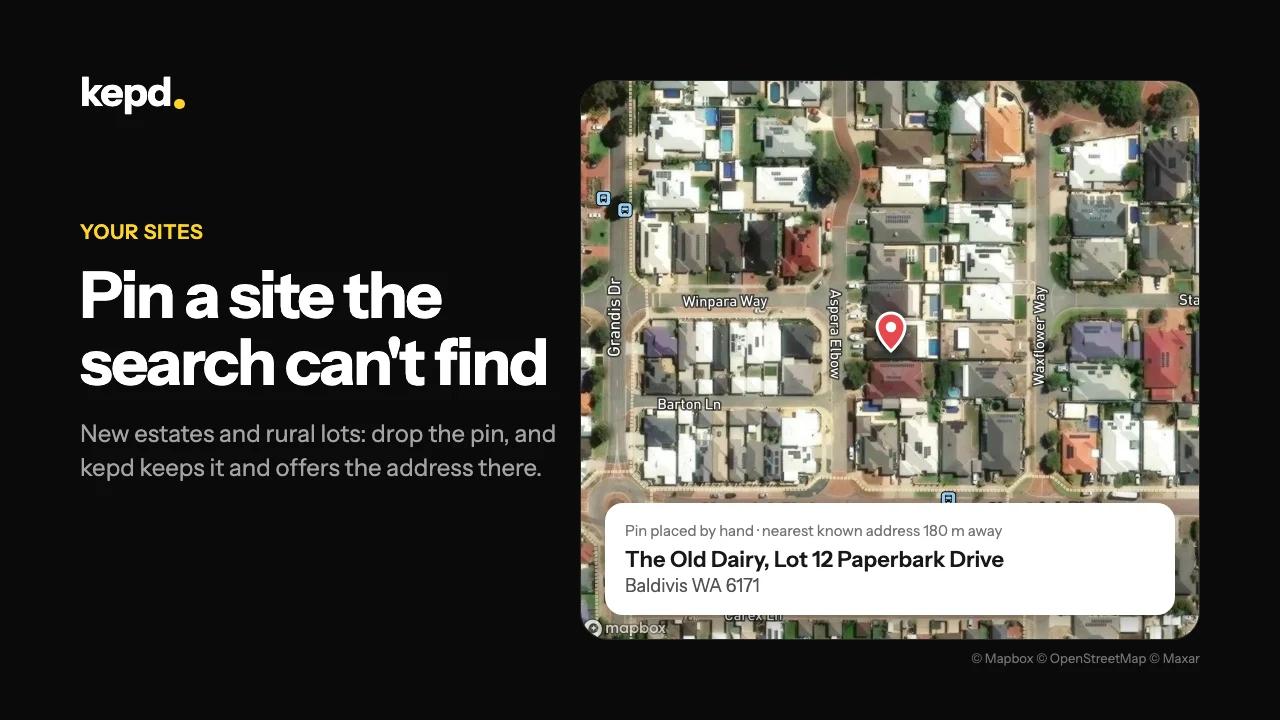
Can't find it? Tap the map.
Tap the map where the site is, or drag the pin there. Zoom in on the satellite view to put it on the right driveway. A pin you place by hand is kept as it is; nothing in kepd moves it.
- 3
Check the address kepd offers.
kepd looks up the address at the pin. When it's a neighbour's, it says how far away it is - for example Nearest known address, 180 m away. Choose Use and edit to fill the address in and correct it.
- 4
Edit the address details.
Open Edit address details to write the parts yourself: Street 2 for a unit, building or house name (anything you want on the job), then street, suburb, state and postcode. Your words are kept exactly as typed.
- 5
Save, and move it later if you need to.
Save the site. To move a pin later, open the property's Edit address, drag the pin and save - you can save a moved pin even when the address text hasn't changed.
What you'll achieve.
- A site saved with its pin exactly on the driveway, even when no search can find it
- The address written your way: unit, building or house name, street, suburb, state and postcode
- Pins your team and the field app can trust
Pro tips.
- Changing the address text without moving the pin clears the old pin, because it belonged to the old address.
- Connected AI apps can place a site's pin too, with the address-at-a-point and place-a-pin tools.