Step by step
- 1
Start from the dashboard
The dashboard gives you a high-level view of the day: new requests, quotes, scheduled jobs and invoices, plus timesheets, safety flags that need attention and a money snapshot of what's outstanding.
- 2
Plan ahead in the schedule
Open Schedule and switch between day, week, month, list and map views to see who is booked where and balance the workload across your crew.
- 3
Capture new requests
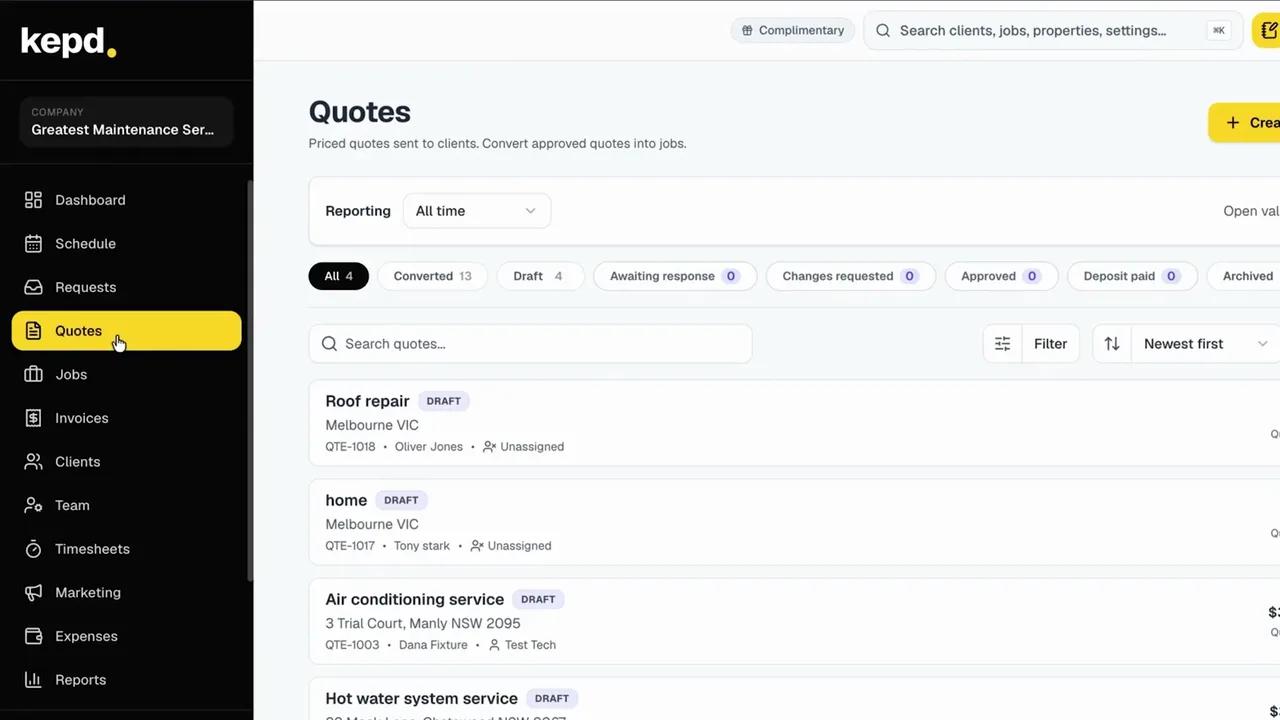
Type a request straight into kepd, or import a client email or PDF and let kepd fill in the details for you. From there, a request becomes a quote in a few clicks.
- 4
Run the work inside the job
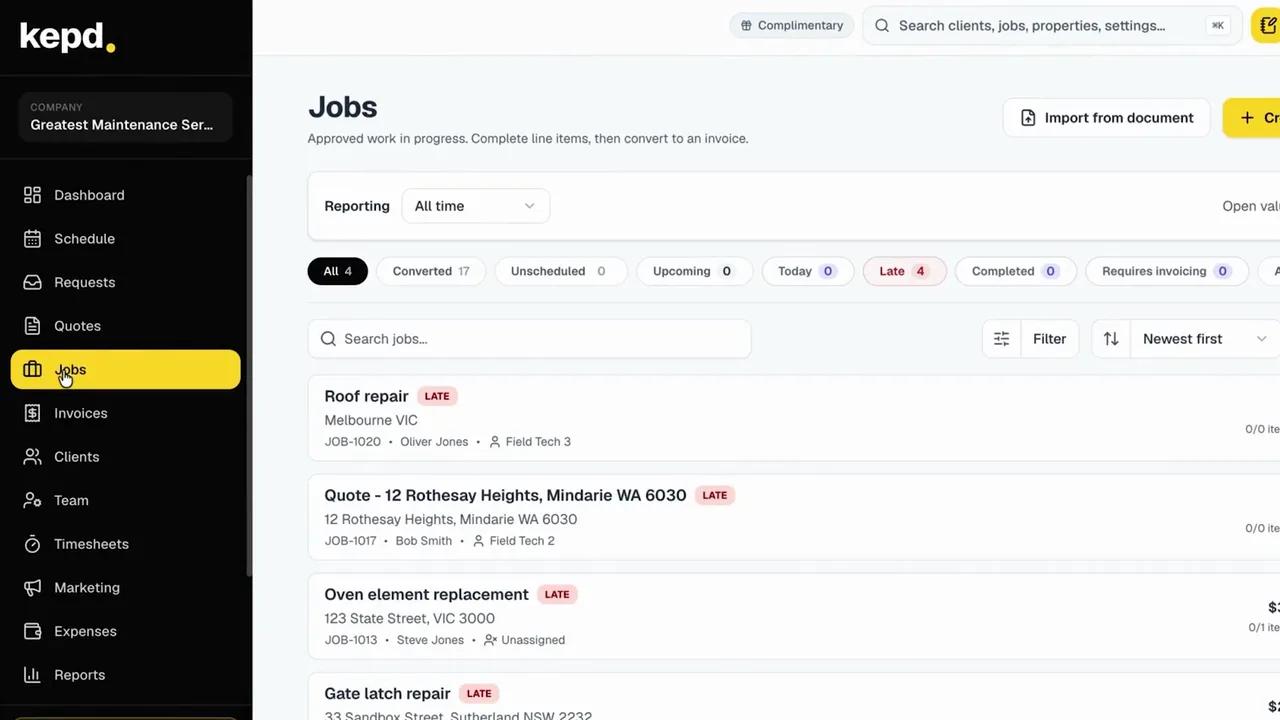
Every job has its own workspace with the scope, line items and a discussion thread. Post progress updates and @mention a teammate to notify them, so everyone stays on the same page.
- 5
Trace everything back
Request, quote, job and invoice stay linked, so from a finished invoice you can see which technician was on site and the original customer request.
- 6
Manage people and the business
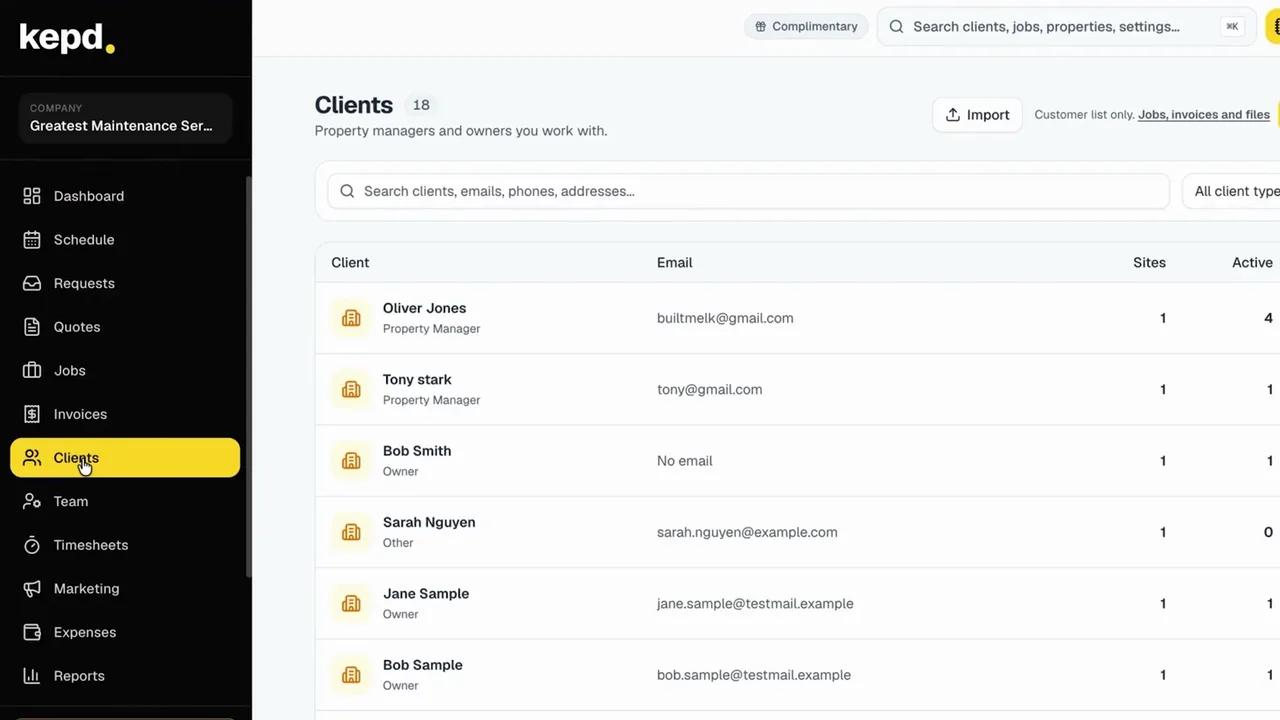
Look after clients and your team, review timesheets, log materials and expenses, run email campaigns from the marketing hub, and track performance in Reports and Goals against live actuals.
- 7
Make it yours and connect your tools
In Settings, add your logo, financial terms, disclaimers and email templates, import data from your existing system, and connect integrations like Xero, QuickBooks, Stripe and Square.
- 8
Ask Kip
Use the global search bar, or ask Kip - the built-in AI assistant - to find a job, invoice or client, draft notes and summarise requests.
What you'll achieve
- A clear picture of how requests, quotes, jobs and invoices connect
- Knowing where to find your schedule, team and reports
- The settings to visit first to make kepd your own
Pro tips
- Watch this one first, then dip into the step-by-step guides for each area.
- Import your existing clients and catalogue early so every quote and job has something to pull from.
- Keep Kip open in the corner - it's the fastest way to find anything.