Step by step
- 1
Open your quotes workspace
Click Quotes in the left-hand menu. This is where you see all your drafts, active proposals and approved work.
- 2
Start a new quote
Click Create New Quote in the top right corner.
- 3
Link the client
Start typing the client's name in the search bar and kepd pulls up their profile and contact details.
- 4
Confirm the site
Confirm where the work is happening so your crew knows exactly where to go. Add a site contact and mobile number, plus any access instructions like gate codes or key locations.
- 5
Describe the work and create the quote
Give the quote a clear title, a brief description of the scope of work and a category, then hit Create quote. This only saves a draft - nothing is sent to the client yet.
- 6
Build the quote
In the quote builder, write an introduction, build out your line items and attach any relevant photos or files.
- 7
Send it or download a PDF
Use the buttons at the bottom of the screen. If you just need a hard copy, download it as a PDF. To send it, click the dark Send button, review the email and send it to your client.
- 8
Approve and convert to a job
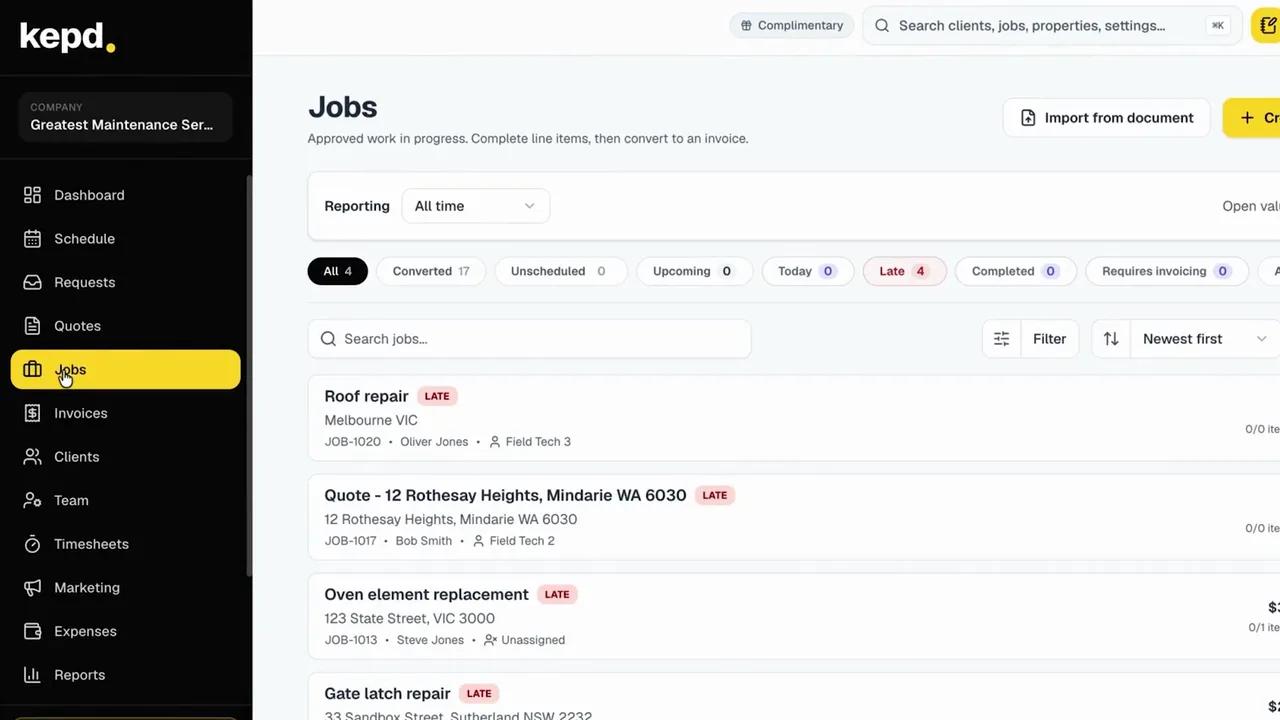
Once the client gives you the go-ahead, click Approve and kepd instantly converts the quote into an active job.
What you'll achieve
- A professional quote sent to your client
- Line items, photos and files in one place
- An approved quote turned into an active job in one click
Pro tips
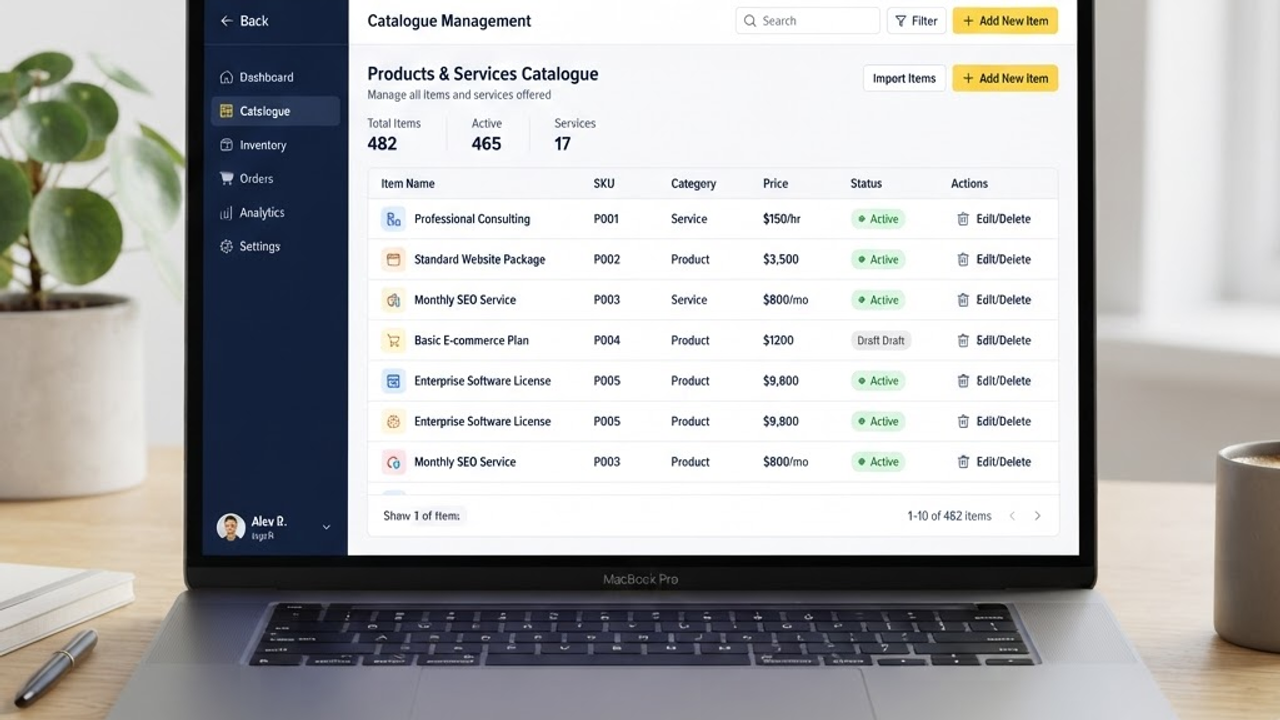
- Set up your products & services first so building line items only takes a couple of minutes.
- Add access details on the quote - they carry through to the job for your crew.
- Follow up on unopened quotes - a quick nudge often closes the deal.