Step by step.
- 1
Switch connected apps on (owner).
Connected apps are off until the business owner turns them on. Go to Settings, Connected apps, and switch on Let people connect AI apps. Turning it off later disconnects every app in the business at once.
- 2
Choose who can connect (owner).
Under Who can connect, each person follows their role until you choose for them. Owners and Admins can connect by default. Set anyone to Can connect or Can't connect; taking access away disconnects their apps straight away.
- 3
Add kepd to your app.
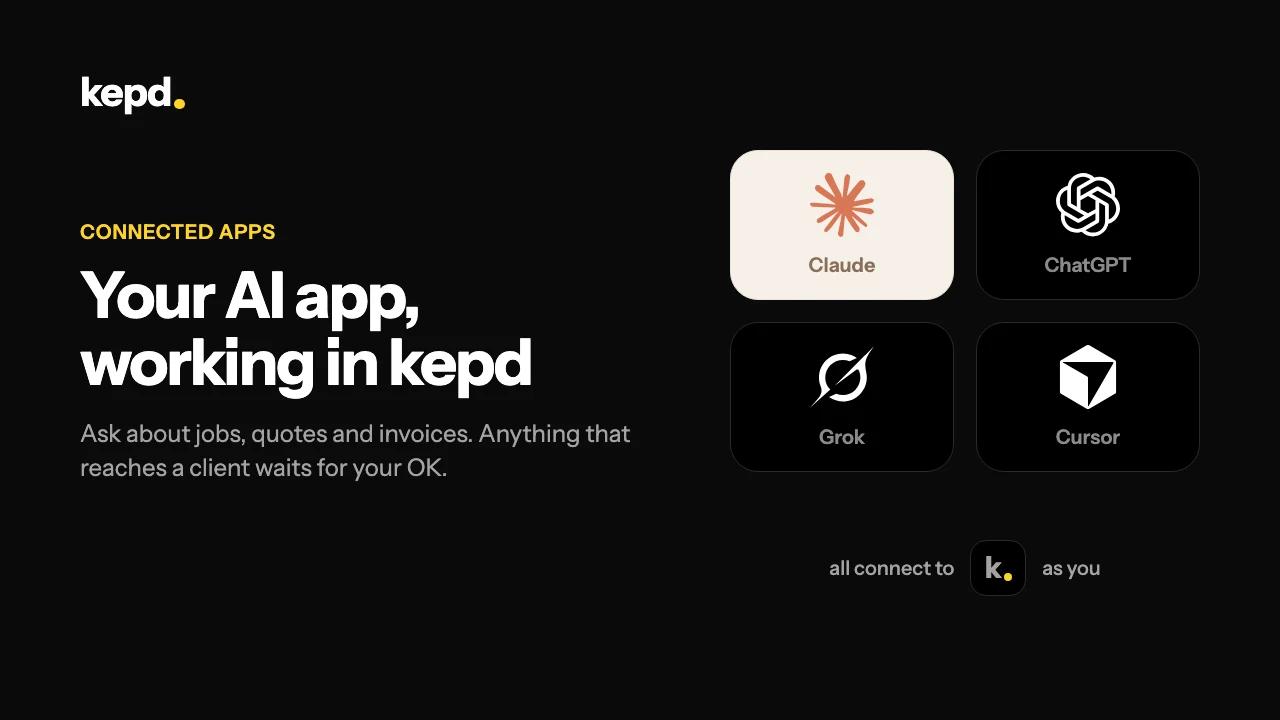
Copy the server URL from Settings, Connected apps (https://api.kepd.app/mcp). In Claude: Settings, Connectors, Add custom connector. In ChatGPT: Settings, Apps and Connectors, Advanced settings, turn on Developer mode, then Create. In Grok: Connectors, New connector, Custom. In Cursor: Settings, MCP, Add new MCP server. Paste the URL.
- 4
Sign in and choose what it may do.
The app sends you to kepd to sign in, with your two-factor code if you use one. Choose Look things up only, or Look things up and make changes (office admins only). If it can make changes, choose where you give your OK: in the app itself, or in kepd only.
- 5
Ask about your business.
Try: What's on for the team tomorrow? How much are clients owing, and what's overdue? Which quotes haven't been opened? Compare October with September. Figures are worked out by kepd, not estimated by the AI.
- 6
Approve what reaches a client.
Booking a visit or raising a request happens straight away. Sending a quote or invoice, texting a client, issuing or voiding an invoice, recording a payment or moving a case on waits for your OK - in the app if you chose that, or from the bell on the web and the notification on your phone. A request you don't answer within five minutes lapses.
- 7
Change or disconnect an app.
In Settings, Connected apps you can switch a connection between look up only and make changes, choose where you approve, or disconnect it. A disconnected app is refused on its very next request.
What you'll achieve.
- Claude, ChatGPT, Grok or Cursor working in kepd as you
- Knowing what it can look up, what it changes straight away and what waits for your OK
- Control over who in your team can connect, and how to disconnect an app
Pro tips.
- If you approve in the app, keep the app's own allow prompt switched on for kepd. It is what stops the AI approving something by itself after reading a client note or email.
- A technician's app sees only their own work, and a role that can't see prices gets no prices.
- An app can't use the client portal, act as the kepd Field app, change roles or security settings, or touch your kepd subscription.