Step by step
- 1
Go to Team settings
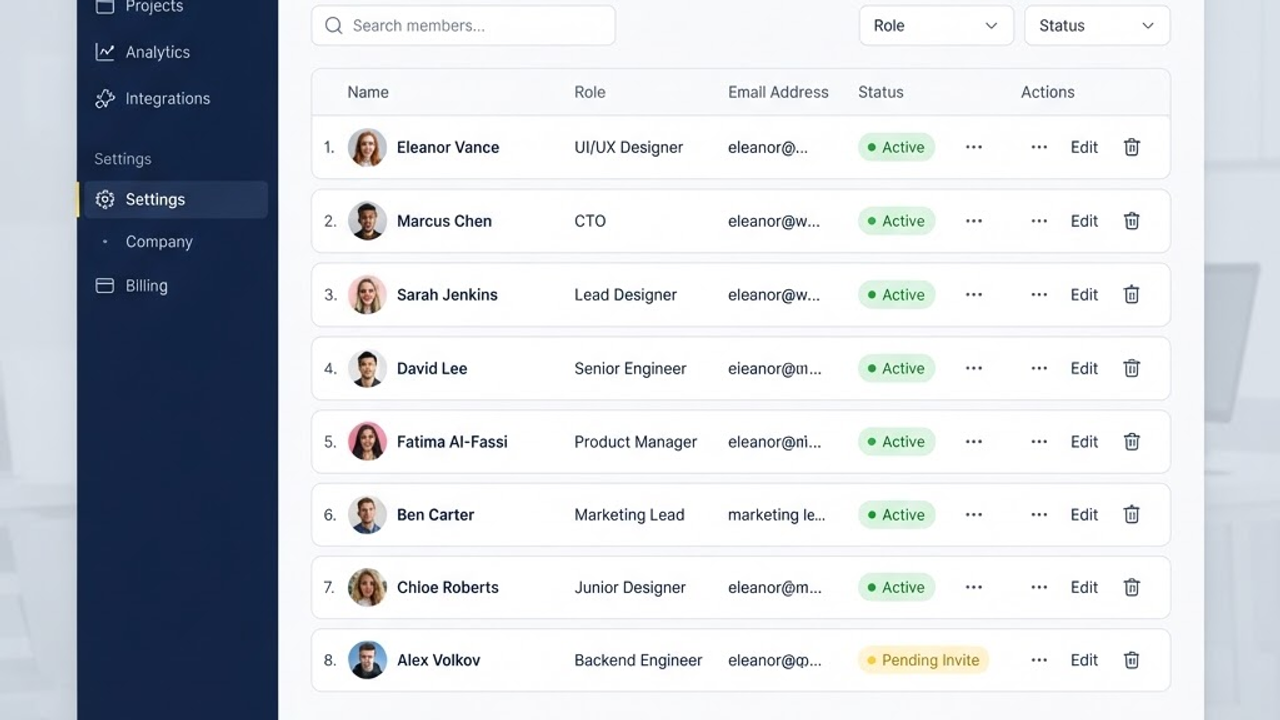
Open Settings and select Team. You'll see everyone currently on your account, their roles and their status.
- 2
Invite a teammate
Click Invite member and enter their name and email address. They'll receive an email with a secure link to set up their own login.
- 3
Choose their role
Pick a role that matches what they do - for example an office admin who manages quotes and invoices, or a field technician who sees their assigned jobs and can add notes and photos on site.
- 4
Fine-tune permissions
If needed, adjust individual permissions so people only access what's relevant to them. This keeps pricing, financials and client data secure.
- 5
Send and track the invite
Send the invite and watch its status update from Pending to Active once they accept. You can resend or revoke an invite at any time.
What you'll achieve
- Team members invited and active
- The right role and permissions for each person
- Everyone working from a single, shared source of truth
Pro tips
- Start field staff on a technician role - you can always upgrade permissions later.
- Use work email addresses so invites don't get lost in personal inboxes.
- Revoke access immediately when someone leaves to keep your account secure.